Golf Simulator PC Requirements: What Specs Do You Need?
Evidence: Research-led guide. This article uses current software documentation and general PC-buying principles. It is not a hands-on test of every simulator platform or computer.
Buying a PC for a golf simulator is easy to get backwards. A huge graphics-card number looks reassuring, but it does not tell you whether the software you want will run well, whether it supports your launch monitor or whether the computer will suit the screen you plan to use.
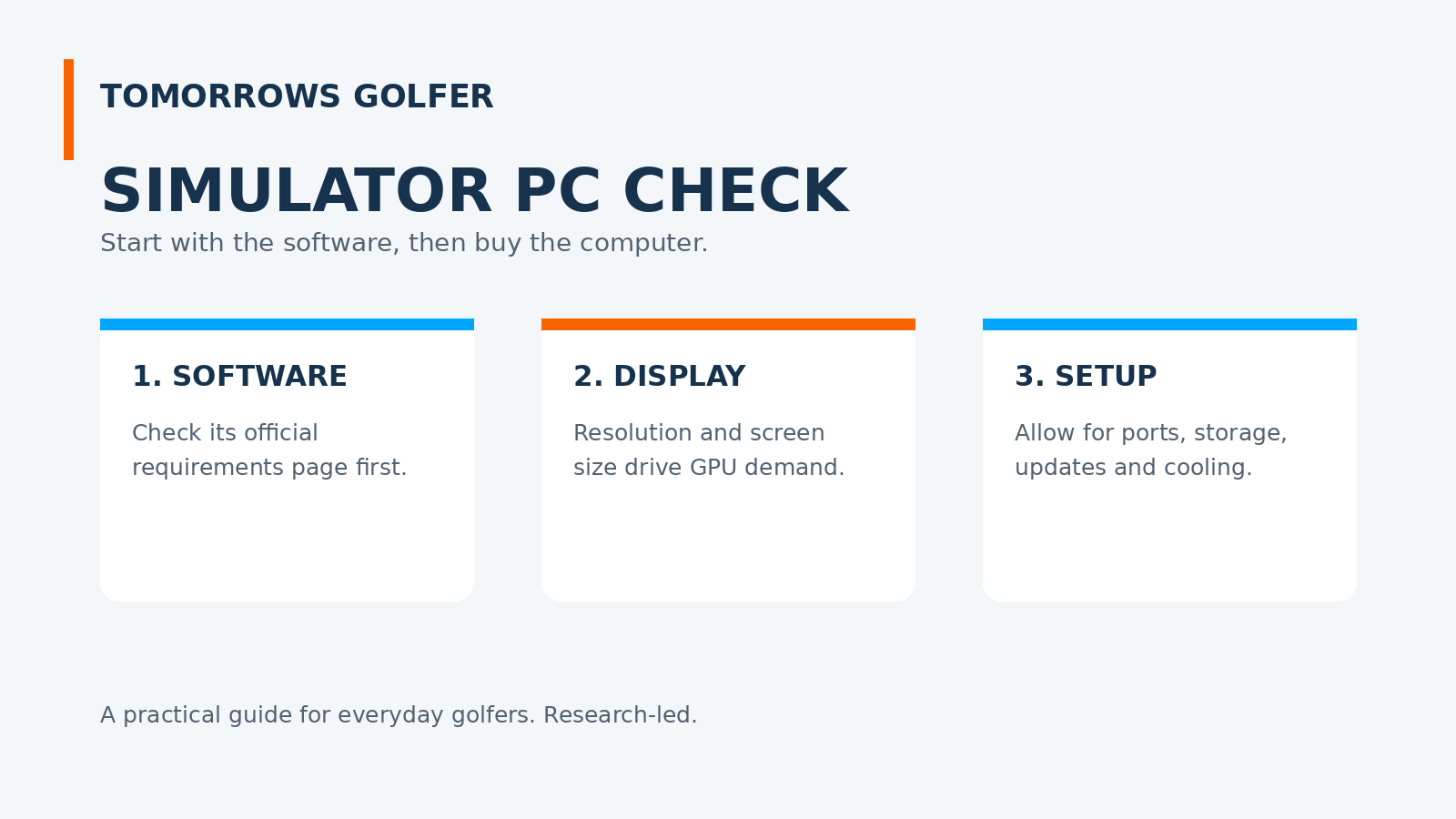
The practical order is: choose the simulator software, read its current official requirements, then match the PC to the display and the rest of your setup.
The short answer
For many home setups, a Windows PC with a dedicated graphics card, enough memory and spare storage is the sensible starting point. But there is no honest one-size-fits-all spec. A 1080p setup for a modest screen can need far less graphics headroom than a larger, higher-resolution display running detailed virtual courses.
Do not buy a PC solely because a retailer calls it “gaming”. Check the exact simulator software first. Its published requirements are the deciding document.
Start with the software, not the PC
Simulator software determines the operating system, graphics support, storage needs and sometimes the connection method for your launch monitor. It may also shape whether you need a PC at all: some ecosystems can use a mobile device, while others are built around Windows.
For a useful example of why requirements matter, GSPro’s current FAQ separates its 1080p guidance from its 4K guidance, and names Windows, graphics, memory and free-storage expectations. Those figures are not a universal shopping list. They are a reminder that the application and display target matter together.
Before spending anything, save the official requirements page for the exact version and check it again just before ordering. Requirements can change with software updates.
What each PC component actually affects
Graphics card: the visual workload
The graphics card does most of the work of drawing the course, range or practice environment. It becomes more important as you increase resolution, screen size, visual detail and target frame rate. If you plan to use a projector, read our projector throw-ratio guide alongside the software requirements: where the projector sits affects the room, while its resolution affects the image you are asking the PC to produce.
Processor and memory: keeping the setup responsive
The processor and system memory support the software, launch-monitor connection, operating system and background tasks. A PC that merely opens a simulator can still feel frustrating if it has little memory headroom, slow storage or lots of unnecessary background software. Use the software publisher’s recommended specification rather than treating the minimum as a performance promise.
Storage: leave room for updates and courses
Simulator applications, course files and updates can take more space than expected. Do not fill a drive to its limit on day one. Leave practical headroom for software updates, downloaded content and normal Windows maintenance.
Match the computer to the display plan
A PC recommendation only makes sense alongside the image it will drive. A laptop screen, TV and projected impact screen are different jobs. Resolution, refresh rate, screen size and the software’s own graphics settings all affect the load.
That is why “Will it run?” is a weaker buying question than “Will it run my chosen software at the image quality I want in this room?” If you are still deciding on the room itself, start with how much space a golf simulator needs before locking in a projector or PC.
Do not forget the unglamorous checks
- Ports and connection: confirm how the launch monitor connects and whether you need Ethernet, Bluetooth, Wi-Fi or an adaptor.
- Operating system: verify the software’s supported version. Do not assume Windows, macOS and mobile support are interchangeable.
- Cooling and placement: a PC needs airflow. A cupboard or enclosed cabinet can create heat and access problems.
- Updates: plan for graphics drivers, Windows updates and simulator-software updates rather than freezing a working setup forever.
- Budget: reserve money for the display, hitting surface and safety equipment. The PC is only one part of the room.
Who this guide is for
Best for: golfers planning a first PC-based home simulator or replacing an old computer without wanting to overspend on vague “gaming PC” marketing.
Skip this and check the official support page first if: you have already chosen software and its publisher provides a complete, current specification. That document should override generic advice.
Tomorrows Golfer verdict
Buy the PC last, not first. Choose the simulator software and display plan, use the publisher’s current recommended requirements as your baseline, then add sensible headroom for updates and the way you actually want to use the room. That approach is less exciting than chasing a headline specification, but it is far less likely to leave you with an expensive mismatch.
For the wider budget, see what a golf simulator really costs and E6’s official platform information before committing to a software ecosystem.